 Qiusheng Wu
f9e2cae0be
* docs: migrate the documentation build from MkDocs to Zensical

Mkdocs and Material for MkDocs are now in maintenance mode; the same
team's successor is Zensical, which natively reads the existing
mkdocs.yml. Switch the docs toolchain over:

- Replace mkdocs-material with zensical in requirements-docs.txt
- Build with `zensical build --strict` in the Pages workflow and the
  Netlify build (Zensical's default site_dir is already `site`)
- Update contributing docs to use `zensical serve` / `zensical build`
- Escape the `[::1]` IPv6 literal in plugins.md so Zensical's stricter
  link checker no longer treats it as an unresolved reference
- Refresh the extra.css comment to note the selectors target Zensical's
  output

Closes #441

* Address review feedback

- Pin zensical to >=0.0.45,<0.1 in requirements-docs.txt so the docs
  build doesn't silently pull a future 0.0.x (or 0.1+) release that
  breaks the build. zensical is pre-1.0, so any minor/patch bump can be
  breaking; the lower bound matches the locally verified version and the
  upper bound caps within the tested 0.0.x series. Addresses the Claude
  and CodeRabbit comments on the unpinned dependency.

* Address review feedback

- Set site_dir: site explicitly in mkdocs.yml. zensical build has no
  --site-dir flag (only -f/-c/-s), but it honors the site_dir key from
  mkdocs.yml (verified: setting a temp value redirected the output). This
  pins the build target to site/, matching the hard-coded upload path in
  the Pages workflow and the netlify.toml publish dir, so a future 0.0.x
  default-dir shift can't silently upload an empty directory. Addresses
  the Claude comment about the implicit output directory.
2.8 KiB
Plugins & Marketplace
Much of GeoLibre's functionality ships as plugins. The Plugins menu activates built-in plugins, and the Manage Plugins dialog (under Settings) installs, updates, and removes external plugins from a curated registry.
The Plugins menu
The Plugins menu lists every available plugin under Activate plugin. Click a plugin to toggle it on or off; a check mark shows which are active. Built-in plugins include the Layer Control, Basemaps, Components (Measure, Bookmark, Legend, Colorbar, Minimap, View State, Search, Print, HTML), GeoEditor, Time Slider, Layer Swipe, Street View, LiDAR Viewer, Overture Maps, GeoAgent, Esri Wayback, and the federal Web Services group. See Data Integrations.
For plugins that add an on-map control, a submenu lets you position the control in any corner: top left, top right, bottom left, or bottom right.
Manage Plugins
Open Settings → Manage Plugins to browse the marketplace. The dialog is modeled on QGIS, with sections for All, Installed, Not installed, Upgradeable, and Settings.
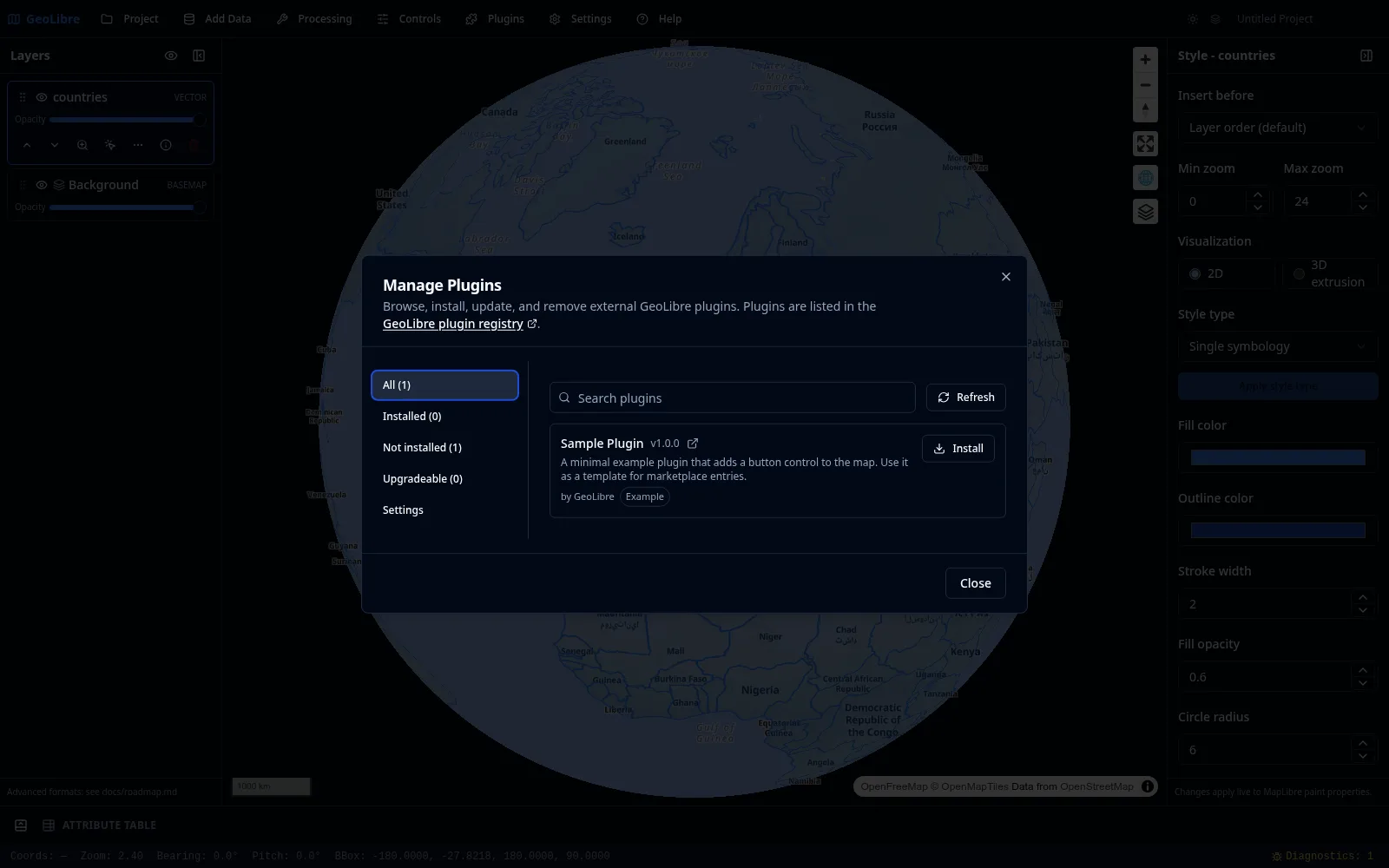
- Search the registry and Install an entry with one click. Installation records the plugin's manifest URL and registers it immediately, with no restart.
- Update appears when a newer version is published; it re-fetches and re-registers the plugin in place, keeping the old version if the update fails.
- Uninstall (after a confirmation) unregisters the plugin at runtime and tears down any active control.
- The Settings section manages additional plugin sources: extra local directories and manual manifest URLs.
Compatibility is checked against each entry's minGeoLibreVersion, so incompatible plugins are flagged rather than installed.
!!! note "Trust model"
The registry is a curated allowlist, manifests require HTTPS (or HTTP on localhost, 127.0.0.1, or [::1] for development), and every install requires explicit consent, because plugins run as trusted code. The curated registry and the install confirmation are the primary safeguards.
Where plugins come from
- Curated registry: the marketplace fetches a versioned JSON registry, hosted by default at
plugins.geolibre.app. The registry and plugin bundles live in the opengeos/geolibre-plugins repository. - Manifest URL: point the Settings section at any
plugin.jsonmanifest URL. - Local directory: load a plugin from a local folder (desktop app).
- Bundled drop-ins: plugins placed in
public/plugins/<id>/load automatically in a build.
Writing your own plugin
To build a plugin, see Reference → Plugin API for the TypeScript interfaces, the plugin.json manifest contract, and the list of built-in plugins.